Manual Genesis Lith 400 RGB Tastatură

Ai nevoie de un manual pentru Genesis Lith 400 RGB Tastatură? Mai jos puteți vizualiza și descărca manualul PDF gratuit în limba română. Acest produs are în prezent 2 întrebări frecvente, 0 comentarii și are 0 voturi. Dacă acesta nu este manualul dorit, vă rugăm să ne contactați.

Produsul dvs. s-a defectat și manualul nu oferă nicio soluție? Mergeți la Repair Café pentru servicii de reparații gratuite.

Manual

Loading…
SPECIFICATION
• Keyboard size
• Connector
• Number of key
• Number of multimedia keys
465 x 195 x 25 mm
USB
104
12
PACKAGE CONTENT
• Lith 400 RGB gaming keyboard
• Quick installation guide
warranty
• 2 years limited manufacturer warranty
requirements
• PC or PC compatible device with a USB port
• Windows® XP/Vista/7/8/10, Android, Linux
features
• Ultra-flat and quiet X-Scissors keys
• Anti-ghosting function for 19 keys
• RGB backlight with PRISMO effect
• Gaming software with profile and macro editor
Instalation
Connect your device to the USB port of your computer, it is necessary to wait about 15 seconds for the first connection until the
drivers are fully installed. The keyboard includes software that allows you to set up advanced features, if you want to use these
features, you need to download and install the software from our website www.genesis-zone.com. Open the installation folder
and then double-click the setup.exe file. Follow the installation instructions. After a successful installation, the software icon
appears on the main bottom panel. Double-clicking the icon opens the settings interface.
ARROW FUNCTION CHANGE
Press [ Fn ] + [ W ] to swap arrow function with WASD
keys function.
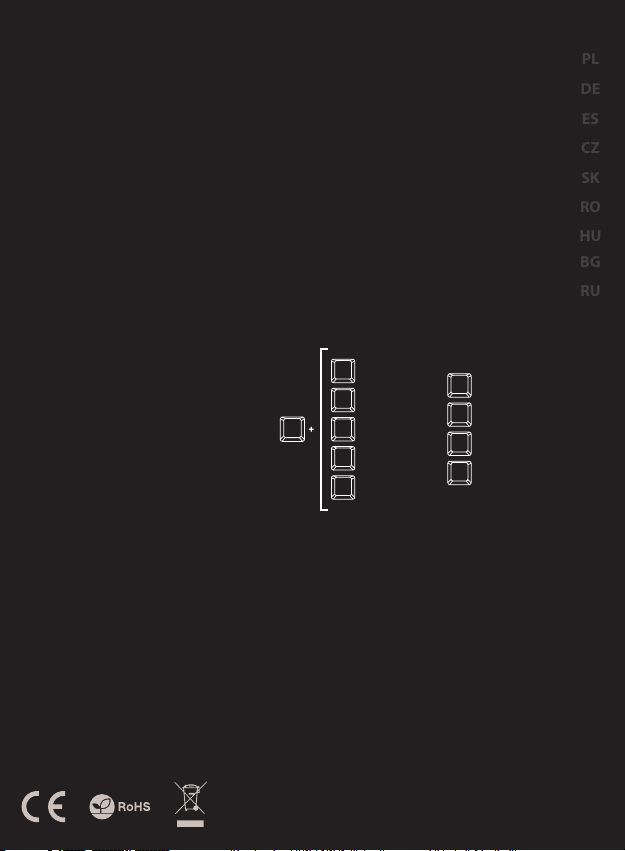
BACKLIGHT MODE CHANGE
Press the keys [ Fn ] + [ 1 ] ... [ 9 ] to change between 9
backlight modes.
SPEED OF BACKLIGHT
EFFECTS
To change the backlight brightness level press keys
[ Fn ] + [ Arrow Up ] / [ Arrow Down ]
Note: This function works only in modes [ Fn ] + [ 1 ],
[ Fn ] + [ 2 ], [ Fn ] + [ 3 ], [ Fn ] + [ 4 ], [ Fn ] + [ 6 ]
and [ Fn ] + [ 8 ]
BACKLIGHT BRIGHTNESS
To change the backlight brightness level press keys
[ Fn ] + [ Page Up ] / [ Page Dn ]
Note: This function works only in modes [ Fn ] + [ 5 ] and
[ Fn ] + [ 7 ]
CUSTOM MODE
Custom mode allows you to set the individual
illumination of each zone:
1. Hold [ Fn ] button and double press button [ 7 ] to
enter into “Custom Mode”.
2. Press the [ Fn ] + arrow Up/Down to change color.
3. Press the [ Fn ] + arrow Right/Left to move
between 6 zones.
4. Hold [ Fn ] button and double press button [ 7 ] to
save settings.
EN
PL
DE
ES
CZ
SK
RO
HU
BG
RU
SAFETY INFORMATION
GENERAL
Use as directed.
Non-authorized repairs or taking the device to pieces make the warranty
void and may cause the product damage.
Avoid to hit or friction with a hard object, otherwise it will lead to grind
surface or other hardware damage.
Do not use the product in low and high temperatures, in strong magnetic
fields and in the damp or dusty atmosphere.
Do not drop, knock, or shake the device. Rough handling can break it.
Slots and openings in the case are provided for ventilation and should not
be obscure. Blocking the vents can cause overheating of the device.
• The safe product, conforming to the EU requirements.
• The product is made in accordance with RoHS European standard.
The WEEE symbol (the crossed-out wheeled bin) using indicates that
this product in not home waste. Appropriate waste management aids
in avoiding consequences which are harmful for people and
environment and result from dangerous materials used in the device,
as well as improper storage and processing. Segregated household
waste collection aids recycle materials and components of which the
device was made. In order to get detailed information about recycling
this product please contact your retailer or a local authority.
Fn
PRISMO effect
1
Wave effect 1
2
7 colors breathing
3
Wave effect 2
4
Single color
5
6
Wave effect 3
7
Custom mode
8
Touch response effect
Sound response effect
9
Descărcaţi manualul în limba română (PDF, 0.19 MB)
(Protejați mediul înconjurător și imprimați acest manual numai dacă este neapărată nevoie)

Loading…

Evaluare

Spuneți-ne ce părere aveți despre Genesis Lith 400 RGB Tastatură, lăsând o evaluare a produsului. Doriți să împărtășiți experiența dvs. cu acest produs sau să adresați o întrebare? Lăsați un comentariu în partea de jos a paginii.
Ești mulțumit de Genesis Lith 400 RGB Tastatură?
Da Nu
Fiți primul care evaluează acest produs
0 voturi

Alăturați-vă conversației despre acest produs

Aici puteți împărtăși ce părere aveți despre Genesis Lith 400 RGB Tastatură. Dacă aveți o întrebare, citiți mai întâi cu atenție manualul. Solicitarea unui manual se poate face folosind formularul nostru de contact.

Mai multe despre acest manual

Înțelegem că este plăcut să aveți un manual pe hârtie pentru Genesis Lith 400 RGB Tastatură. Puteți oricând descărca manualul de pe site-ul nostru web și îl puteți imprima singur. Dacă doriți să aveți un manual original, vă recomandăm să contactați Genesis. S-ar putea să ofere un manual original. Căutați manualul dvs. Genesis Lith 400 RGB Tastatură într-o altă limbă? Alegeți limba preferată pe pagina noastră de pornire și căutați numărul de model pentru a vedea dacă îl avem disponibil.

Specificații

Marcă Genesis
Model Lith 400 RGB
Categorie Tastaturi
Tip fișier PDF
Mărime fișier 0.19 MB

Toate manualele pentru Genesis Tastaturi
Mai multe manuale pentru Tastaturi

Întrebări frecvente despre Genesis Lith 400 RGB Tastatură

Echipa noastră de asistență caută informații utile despre produs și răspunde la întrebările frecvente. Dacă descoperiți o inexactitate în întrebările frecvente, vă rugăm să ne anunțați utilizând formularul de contact.

Literele de pe tastatură nu se află în locurile cu care sunt obișnuit, de ce este asta? Verificat

Majoritatea tastaturilor folosesc un aspect QWERTY, reprezentând primele șase litere de pe tastatură. Cu toate acestea, există aspecte de tastatură diferite, care corespund nevoilor specifice unei anumite limbi. De asemenea, este posibil ca tastele tastaturii să fi fost schimbate. Mai ales în cazul tastaturilor mai vechi, acest lucru este ușor de făcut.

A fost util (1354) Citeşte mai mult

Care este cel mai bun mod de a-mi curăța tastatura Verificat

Nu introduceți niciodată obiecte între marginile tastelor, deoarece aceasta va împinge în principal murdăria și va deteriora tastatura. Cel mai bine este să curățați tastatura cu aer comprimat, păstrând în același timp tastatura cu capul în jos. Partea superioară a tastelor poate fi curățată cu o cârpă ușor umedă.

A fost util (198) Citeşte mai mult
Manual Genesis Lith 400 RGB Tastatură

Produse asemanatoare

Categorii relevante

×
Download