this manual.
this manual.
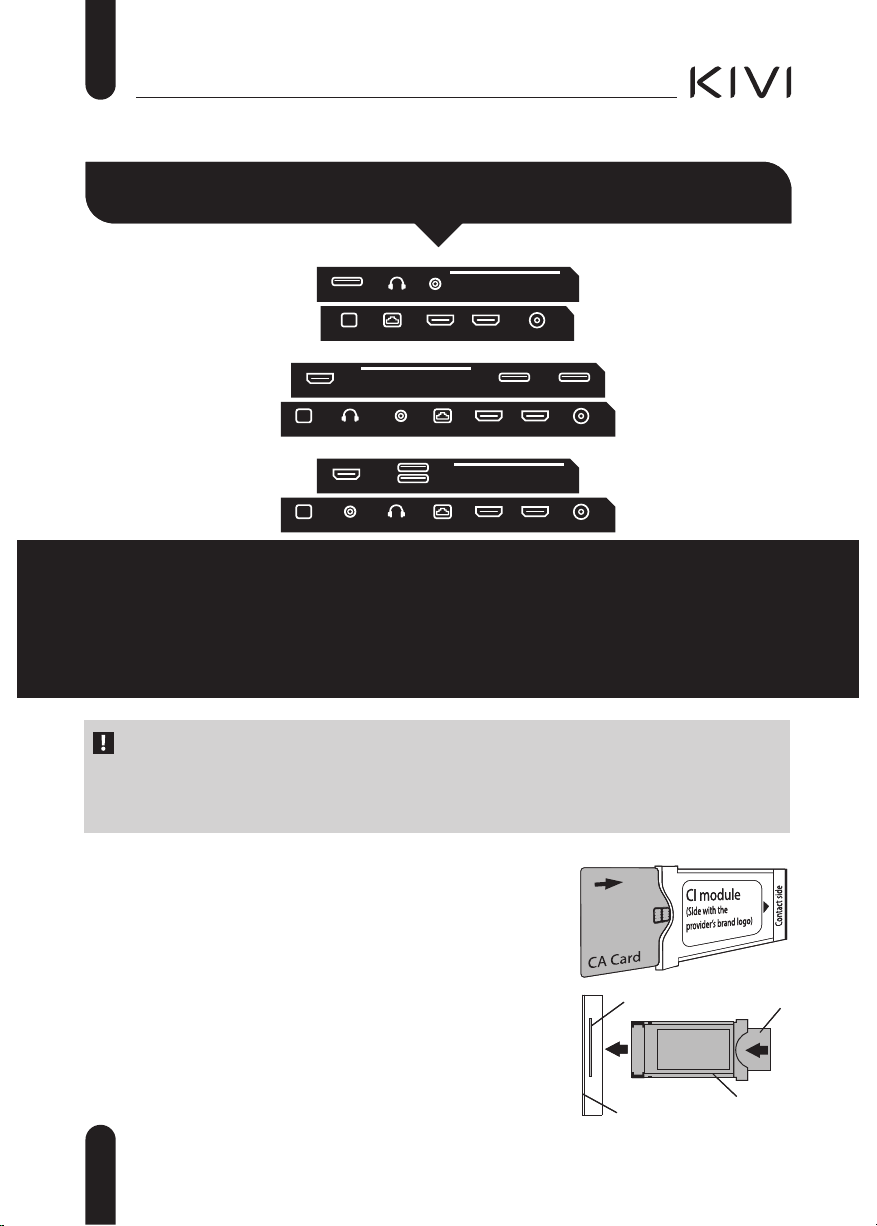
2. The maximum load on the USB port should not exceed 0.5 A.
3. The TV supports ARC, CEC. 2K supports HDMI 1.4 a, 4K supports HDMI 2.1 and eARC.
,Q DGGLWLRQ WRKDUGZDUHUHODWHGPDOIXQFWLRQV LI WKHUHDUH DQ\QRQVWDQGDUG RSHUDWLRQV
SRZHUPHRIRUVHFRQGV
Unstable or
missing
broadcast/cable
TV signal
I have an antenna
connected, but I can't
nd channels, shows
channels with
distortion or sound
interruptions
For stable reception of DVB-T2 (digital) and ATV (analog) signals - use an external antenna with an
amplier with an additional power supply.
Additional power supply of the antenna input is not provided from the side of the TV and USB
connectors.
Point the antenna towards the nearest TV tower.
If you use a room antenna, raise it higher, pay attention around your own axis and move the room.
Make sure that the correct input source is selected - Antenna or Analog TV.
Adjust the channels manually (with manual adjustment, the level and quality of the signal will be
displayed).
For the stability of the image and sound, the indicators should be from 50% to higher.
Check the integrity of the cable.
I have cable TV
connected, but I can't
nd channels, shows
channels with
distortion or sound
interruptions
When using cable TV (DVB-C), I recommend connecting without using a splitter. Connect me to
another antenna cable if possible.
Make sure the correct input source is Cable TV.
Adjust the channels manually (with manual adjustment, the level and quality of the signal will be
displayed).
Check the integrity of the cable.
Use a signal booster.
No sound is
output to external
speakers
Connecting speakers
via Bluetooth
Connect Bluetooth speakers via the menu Settings ĺ Remote controls and accessories ĺ Add
devices.
Enable visibility / sync mode on the external device.
No or unstable
Internet
connection
I am connected to a
Wi-Fi or Ethernet
network with no
Internet access
Turn o the TV and router from the outlet for 1 minute.
Check and set the correct date and time in Settings ĺ System ĺ Date & Time.
The image from
the PC / game
console is not
displayed
An external device is
connected to me via
HDMI, there is no
image, the inscription
“No signal”
Check the performance and version of the HDMI cable on another compatible device.
HDR and 4K (Ultra HD) content can be transmitted via HDMI 2.0 and higher. Only UHD KIVI
models are supported.
ŹHDR. Go to Settings ĺ Dispaly & Sound ĺ Picture ĺ Advanced Video ĺ HDR ĺ select On.
Ź4K (Ultra HD). In Settings ĺ Channels & Inputs ĺ Inputs ĺ HDMI EDID Version ĺ select EDID
2.0 or EDID 2.1.
On a PC, change the resolution in the control menu of the video driver, and select the appropriate
image broadcast mode.
In the settings of the game console, congure the corresponding menu items according to the
manufacturer's instructions.
Connecting speakers
via HDMI
Connect the speakers to me via the HDMI (ARC) connector.
In Settings ĺ Channels & Inputs ĺ Inputs ĺ HDMI EDID Version ĺ select the EDID value.
In Settings ĺ Dipaly & Sound ĺ Audio output ĺ Digital Output ĺ select Auto, Bypass, PCM, etc.
Connection of
acoustics through the
3.5 connector for
headphones
Make sure the audio cable is fully inserted into the 3.5 jack.
Connecting acoustics
through optics
Connect the speakers to the OPTICAL jack.
In Settings ĺ Dipaly & Sound ĺ Audio output ĺ Digital Output ĺ select Auto, Bypass, PCM, etc.
Use the VOL button on the remote control to reduce the sound volume until it is completely
turned o.
The remote from the acoustics will increase the sound to the required level.
,Q DGGLWLRQ WRKDUGZDUHUHODWHGPDOIXQFWLRQV LI WKHUHDUH DQ\QRQVWDQGDUG RSHUDWLRQV
SRZHUPHRIRUVHFRQGV
Unstable or
missing
broadcast/cable
TV signal
I have an antenna
connected, but I can't
nd channels, shows
channels with
distortion or sound
interruptions
For stable reception of DVB-T2 (digital) and ATV (analog) signals - use an external antenna with an
amplier with an additional power supply.
Additional power supply of the antenna input is not provided from the side of the TV and USB
connectors.
Point the antenna towards the nearest TV tower.
If you use a room antenna, raise it higher, pay attention around your own axis and move the room.
Make sure that the correct input source is selected - Antenna or Analog TV.
Adjust the channels manually (with manual adjustment, the level and quality of the signal will be
displayed).
For the stability of the image and sound, the indicators should be from 50% to higher.
Check the integrity of the cable.
I have cable TV
connected, but I can't
nd channels, shows
channels with
distortion or sound
interruptions
When using cable TV (DVB-C), I recommend connecting without using a splitter. Connect me to
another antenna cable if possible.
Make sure the correct input source is Cable TV.
Adjust the channels manually (with manual adjustment, the level and quality of the signal will be
displayed).
Check the integrity of the cable.
Use a signal booster.
No sound is
output to external
speakers
Connecting speakers
via Bluetooth
Connect Bluetooth speakers via the menu Settings ĺ Remote controls and accessories ĺ Add
devices.
Enable visibility / sync mode on the external device.
No or unstable
Internet
connection
I am connected to a
Wi-Fi or Ethernet
network with no
Internet access
Turn o the TV and router from the outlet for 1 minute.
Check and set the correct date and time in Settings ĺ System ĺ Date & Time.
The image from
the PC / game
console is not
displayed
An external device is
connected to me via
HDMI, there is no
image, the inscription
“No signal”
Check the performance and version of the HDMI cable on another compatible device.
HDR and 4K (Ultra HD) content can be transmitted via HDMI 2.0 and higher. Only UHD KIVI
models are supported.
ŹHDR. Go to Settings ĺ Dispaly & Sound ĺ Picture ĺ Advanced Video ĺ HDR ĺ select On.
Ź4K (Ultra HD). In Settings ĺ Channels & Inputs ĺ Inputs ĺ HDMI EDID Version ĺ select EDID
2.0 or EDID 2.1.
On a PC, change the resolution in the control menu of the video driver, and select the appropriate
image broadcast mode.
In the settings of the game console, congure the corresponding menu items according to the
manufacturer's instructions.
Connecting speakers
via HDMI
Connect the speakers to me via the HDMI (ARC) connector.
In Settings ĺ Channels & Inputs ĺ Inputs ĺ HDMI EDID Version ĺ select the EDID value.
In Settings ĺ Dipaly & Sound ĺ Audio output ĺ Digital Output ĺ select Auto, Bypass, PCM, etc.
Connection of
acoustics through the
3.5 connector for
headphones
Make sure the audio cable is fully inserted into the 3.5 jack.
Connecting acoustics
through optics
Connect the speakers to the OPTICAL jack.
In Settings ĺ Dipaly & Sound ĺ Audio output ĺ Digital Output ĺ select Auto, Bypass, PCM, etc.
Use the VOL button on the remote control to reduce the sound volume until it is completely
turned o.
The remote from the acoustics will increase the sound to the required level.
,Q DGGLWLRQ WRKDUGZDUHUHODWHGPDOIXQFWLRQV LI WKHUHDUH DQ\QRQVWDQGDUG RSHUDWLRQV
SRZHUPHRIRUVHFRQGV
Unstable or
missing
broadcast/cable
TV signal
I have an antenna
connected, but I can't
nd channels, shows
channels with
distortion or sound
interruptions
For stable reception of DVB-T2 (digital) and ATV (analog) signals - use an external antenna with an
amplier with an additional power supply.
Additional power supply of the antenna input is not provided from the side of the TV and USB
connectors.
Point the antenna towards the nearest TV tower.
If you use a room antenna, raise it higher, pay attention around your own axis and move the room.
Make sure that the correct input source is selected - Antenna or Analog TV.
Adjust the channels manually (with manual adjustment, the level and quality of the signal will be
displayed).
For the stability of the image and sound, the indicators should be from 50% to higher.
Check the integrity of the cable.
I have cable TV
connected, but I can't
nd channels, shows
channels with
distortion or sound
interruptions
When using cable TV (DVB-C), I recommend connecting without using a splitter. Connect me to
another antenna cable if possible.
Make sure the correct input source is Cable TV.
Adjust the channels manually (with manual adjustment, the level and quality of the signal will be
displayed).
Check the integrity of the cable.
Use a signal booster.
No sound is
output to external
speakers
Connecting speakers
via Bluetooth
Connect Bluetooth speakers via the menu Settings ĺ Remote controls and accessories ĺ Add
devices.
Enable visibility / sync mode on the external device.
No or unstable
Internet
connection
I am connected to a
Wi-Fi or Ethernet
network with no
Internet access
Turn o the TV and router from the outlet for 1 minute.
Check and set the correct date and time in Settings ĺ System ĺ Date & Time.
The image from
the PC / game
console is not
displayed
An external device is
connected to me via
HDMI, there is no
image, the inscription
“No signal”
Check the performance and version of the HDMI cable on another compatible device.
HDR and 4K (Ultra HD) content can be transmitted via HDMI 2.0 and higher. Only UHD KIVI
models are supported.
ŹHDR. Go to Settings ĺ Dispaly & Sound ĺ Picture ĺ Advanced Video ĺ HDR ĺ select On.
Ź4K (Ultra HD). In Settings ĺ Channels & Inputs ĺ Inputs ĺ HDMI EDID Version ĺ select EDID
2.0 or EDID 2.1.
On a PC, change the resolution in the control menu of the video driver, and select the appropriate
image broadcast mode.
In the settings of the game console, congure the corresponding menu items according to the
manufacturer's instructions.
Connecting speakers
via HDMI
Connect the speakers to me via the HDMI (ARC) connector.
In Settings ĺ Channels & Inputs ĺ Inputs ĺ HDMI EDID Version ĺ select the EDID value.
In Settings ĺ Dipaly & Sound ĺ Audio output ĺ Digital Output ĺ select Auto, Bypass, PCM, etc.
Connection of
acoustics through the
3.5 connector for
headphones
Make sure the audio cable is fully inserted into the 3.5 jack.
Connecting acoustics
through optics
Connect the speakers to the OPTICAL jack.
In Settings ĺ Dipaly & Sound ĺ Audio output ĺ Digital Output ĺ select Auto, Bypass, PCM, etc.
Use the VOL button on the remote control to reduce the sound volume until it is completely
turned o.
The remote from the acoustics will increase the sound to the required level.
,Q DGGLWLRQ WRKDUGZDUHUHODWHGPDOIXQFWLRQV LI WKHUHDUH DQ\QRQVWDQGDUG RSHUDWLRQV
SRZHUPHRIRUVHFRQGV
Unstable or
missing
broadcast/cable
TV signal
I have an antenna
connected, but I can't
nd channels, shows
channels with
distortion or sound
interruptions
For stable reception of DVB-T2 (digital) and ATV (analog) signals - use an external antenna with an
amplier with an additional power supply.
Additional power supply of the antenna input is not provided from the side of the TV and USB
connectors.
Point the antenna towards the nearest TV tower.
If you use a room antenna, raise it higher, pay attention around your own axis and move the room.
Make sure that the correct input source is selected - Antenna or Analog TV.
Adjust the channels manually (with manual adjustment, the level and quality of the signal will be
displayed).
For the stability of the image and sound, the indicators should be from 50% to higher.
Check the integrity of the cable.
I have cable TV
connected, but I can't
nd channels, shows
channels with
distortion or sound
interruptions
When using cable TV (DVB-C), I recommend connecting without using a splitter. Connect me to
another antenna cable if possible.
Make sure the correct input source is Cable TV.
Adjust the channels manually (with manual adjustment, the level and quality of the signal will be
displayed).
Check the integrity of the cable.
Use a signal booster.
No sound is
output to external
speakers
Connecting speakers
via Bluetooth
Connect Bluetooth speakers via the menu Settings ĺ Remote controls and accessories ĺ Add
devices.
Enable visibility / sync mode on the external device.
No or unstable
Internet
connection
I am connected to a
Wi-Fi or Ethernet
network with no
Internet access
Turn o the TV and router from the outlet for 1 minute.
Check and set the correct date and time in Settings ĺ System ĺ Date & Time.
The image from
the PC / game
console is not
displayed
An external device is
connected to me via
HDMI, there is no
image, the inscription
“No signal”
Check the performance and version of the HDMI cable on another compatible device.
HDR and 4K (Ultra HD) content can be transmitted via HDMI 2.0 and higher. Only UHD KIVI
models are supported.
ŹHDR. Go to Settings ĺ Dispaly & Sound ĺ Picture ĺ Advanced Video ĺ HDR ĺ select On.
Ź4K (Ultra HD). In Settings ĺ Channels & Inputs ĺ Inputs ĺ HDMI EDID Version ĺ select EDID
2.0 or EDID 2.1.
On a PC, change the resolution in the control menu of the video driver, and select the appropriate
image broadcast mode.
In the settings of the game console, congure the corresponding menu items according to the
manufacturer's instructions.
Connecting speakers
via HDMI
Connect the speakers to me via the HDMI (ARC) connector.
In Settings ĺ Channels & Inputs ĺ Inputs ĺ HDMI EDID Version ĺ select the EDID value.
In Settings ĺ Dipaly & Sound ĺ Audio output ĺ Digital Output ĺ select Auto, Bypass, PCM, etc.
Connection of
acoustics through the
3.5 connector for
headphones
Make sure the audio cable is fully inserted into the 3.5 jack.
Connecting acoustics
through optics
Connect the speakers to the OPTICAL jack.
In Settings ĺ Dipaly & Sound ĺ Audio output ĺ Digital Output ĺ select Auto, Bypass, PCM, etc.
Use the VOL button on the remote control to reduce the sound volume until it is completely
turned o.
The remote from the acoustics will increase the sound to the required level.


Alăturați-vă conversației despre acest produs
Aici puteți împărtăși ce părere aveți despre Kivi 43U720QB Televizor LED. Dacă aveți o întrebare, citiți mai întâi cu atenție manualul. Solicitarea unui manual se poate face folosind formularul nostru de contact.